How to Download TikTok Videos Without a Logo (Phone & PC)

You just found a great TikTok video and want to save it — to watch offline, keep as reference, or repost — but downloading it inside the app stamps the TikTok logo and the creator's username moving across the screen, and often lowers the quality too. For creators, that watermark makes a clip look unpolished; for everyone else, it covers up the details you actually want to see. This guide shows how to download TikTok videos without the logo, at the original quality, on both phone and computer — completely free, with no app to install and no account to sign into.
Why do in-app TikTok downloads always have a logo?
TikTok deliberately burns a watermark — its logo plus the creator's username — into every video you save from the app, both to credit the source and to promote the brand. The watermark also drifts around the frame, so you can't neatly crop or cover it. On top of that, saving through the app re-compresses the video, so it comes out softer than the original. To get a clean clip you need the original file TikTok keeps on its servers (its CDN) — the version before the watermark is added. That's exactly what VidBake does: it reads the video link, reaches the original file on TikTok's servers, and downloads it straight to your device, so you get a logo-free copy at the highest quality the video has — HD or Full HD (1080p), whichever the creator uploaded.
Steps to download a TikTok video without a logo
- Open TikTok and find the video you want. Tap the Share button (the arrow on the right), then choose Copy link.
- Open your browser — Safari on iPhone, Chrome on Android — and go to vidbake.com/tiktok.
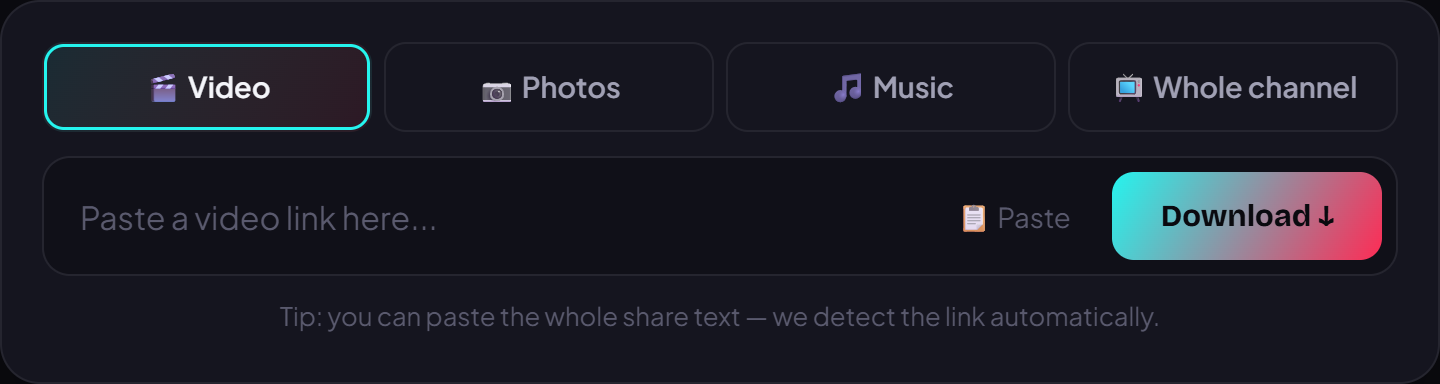
- Tap the paste box, hold, and choose Paste. VidBake recognizes it as a TikTok link automatically; there's no platform to pick.
- Press Download. VidBake pulls the original file straight from TikTok's servers — no logo, no watermark, full quality kept.
- When the video appears, pick the quality you want (prefer HD/Full HD) and tap save: on iPhone it goes to Photos or the Files app, on Android it lands in your Download folder.
- Want more? Just repeat — copy a new link, paste it in, and press Download. There's no limit on how many you save.
Tips for a fast download and the best quality
Always use Copy link from the Share button inside the app rather than the URL from your browser's address bar — a proper share link helps VidBake match the right video and grab the sharpest version. If you want Full HD (1080p), choose the highest option in the list that appears after you press Download; the maximum depends on what the creator uploaded, so not every clip reaches Full HD. For large files, use Wi-Fi instead of mobile data for a faster, steadier save.
Common problems and how to fix them
- Nothing loads after pasting: make sure you copied the whole link; try copying again with the Share button instead of the address bar.
- The video is from a private account: private or friends-only videos can't be downloaded because they need viewing permission — only public videos work.
- Slow or stalled download: a weak connection is the usual cause; switch to Wi-Fi and don't close the tab while it's downloading.
- Can't find the file on iPhone: if Safari asks to allow the download, tap Allow; the video then sits in the Files app under Downloads, and you can save it to Photos from there.
- The saved video still has a logo: make sure you downloaded through vidbake.com and not with the Save button inside TikTok — VidBake's copy is the original file, with no watermark.
Frequently asked questions
Is VidBake free? Yes, completely free with no limit on how many videos you download. There are no fees and no upgrade to buy.
Is this safe for my TikTok account? Very safe. You never log into TikTok on VidBake and never type a password anywhere, so your account is never touched. VidBake only reads the video's public link, deletes everything once the download is done, keeps none of your videos, and tracks nothing.
Does the quality drop? No. VidBake takes the original file straight from TikTok's servers, so you get the highest quality the video has — HD or Full HD (1080p) depending on the source.
Can I do this on a computer? Yes. It works the same way: open vidbake.com/tiktok in any browser on PC or Mac, paste the link, press Download, and the file goes to your Downloads folder.
What else can VidBake download? Besides TikTok, VidBake handles Douyin, Instagram, and Facebook, extracts MP3 audio, downloads photo slideshows, and bulk-downloads whole TikTok or Douyin channels. If you want to edit after downloading, VidBake Studio is a free video editor for Windows for trimming, adding text, and dropping in music, then exporting in HD with no watermark.