How to download TikTok photos and slideshows

TikTok is no longer just video. A huge share of posts are now multi-image slideshows — often called photo mode or image posts — a set of stills that swipe past with a background track. The catch is that when you save one straight from the TikTok app, it usually stamps a logo on the images or bundles everything into a single recorded video instead of handing back the original photos. If you want clean, sharp images for wallpapers, references, or reposting, that is not good enough. VidBake exists to fix exactly this: paste the post link, and it splits the slideshow back into its original high-quality photos so you can save the whole set in seconds.
What a TikTok photo slideshow is, and why use VidBake
A slideshow (photo mode) is a post type that stitches several still images into a playable sequence with music. Unlike a regular video, each frame here is really its own separate image file. That is why tapping Save inside the app usually gives you a video recording of the whole slideshow — complete with the TikTok watermark and the creator's username — rather than the original photos you can reuse freely.
VidBake takes a different route: it pulls the actual original image files from the source and returns them to you, so each photo keeps the highest quality the post carried, with no logo or username stamped on top. The tool runs right in your browser — nothing to install, no login or account required — and works on both phones and computers. Images download straight from the source server to your device; VidBake does not store what you download, does not track you, and its data is cleared immediately afterward. And because you never sign in, your TikTok account is never linked to anything — it stays completely safe.
How to download TikTok photos and slideshows, step by step
The steps below are the same on both phone and computer — the only real difference is where the photos land. You do not need to install anything.
- Open the TikTok app or website and go to the photo (slideshow) post you want to save.
- Tap the Share button (the arrow icon) on the right side of the post, then choose Copy link. The link is now on your clipboard.
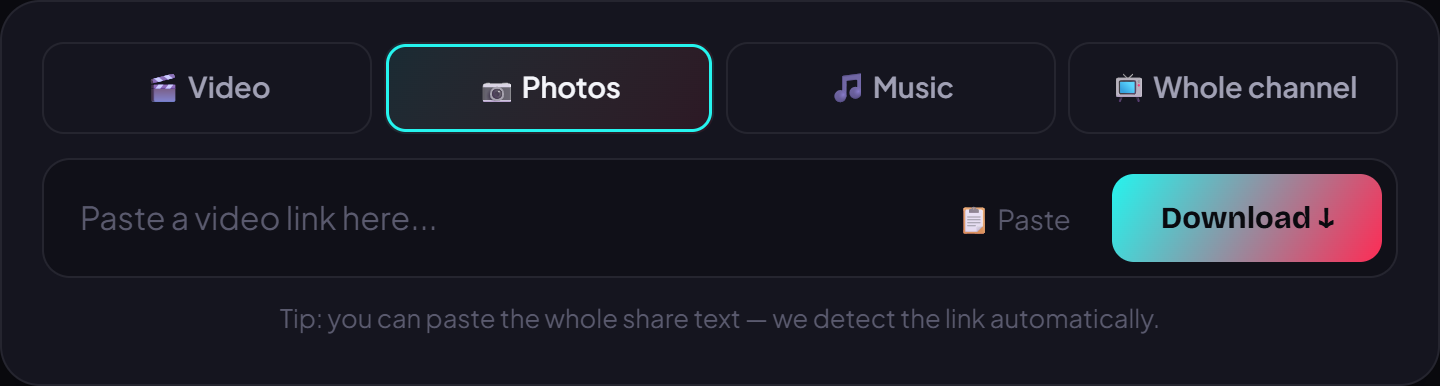
- Open your browser and go to vidbake.com/tiktok/tai-anh, or open VidBake's TikTok page and switch to the Photos tab.
- Tap the paste box and choose Paste, or press the Paste button to drop the link in quickly.
- Press Download. VidBake auto-detects the post, splits the slideshow into its original photos, and shows you a preview.
- Check that all the images are there, then click Save all photos to grab the whole set at once. If you only want a few, download them one at a time.
- On a phone, the photos go to your Photos library (Gallery). On a computer, each image is saved to your Downloads folder.
Phone vs. computer: what is different
It is the same tool, but saving works slightly differently across devices. The image quality is identical either way.
- On a phone: images land straight in your Photos library, handy for reposting to a story or editing right away. If the browser asks for permission to save photos, choose Allow.
- On a computer: each image saves to the Downloads folder, so it is easy to sort, rename, and group them.
- On both: the photos are the highest-quality originals the post carried, with no watermark and no username.
Tips for cleaner, faster photo downloads
- Use the right link: if you paste a normal video link by mistake, you will get a video back instead of photos.
- Want the slideshow's music too? The background track can be saved separately from the Music tab on VidBake's TikTok page, exported as an MP3.
- Save the whole set first, then trim: grabbing everything and deleting the extras from your library is faster than picking each image by hand.
- Need to turn the photos into a fresh video, add captions, or lay music over them? Use VidBake Studio — free video editing software on Windows that exports in HD with no watermark and needs no account.
Common problems and how to fix them
- Link pasted but nothing is recognized: double-check you copied the post link (not the profile page link), then try pasting again.
- You get a video instead of photos: that post is a video, or you grabbed the wrong link. Reopen the correct slideshow post and copy its link again.
- A few images are missing: try downloading again; if some are still gone, the creator may have edited or hidden images in the post.
- Photos will not save on your phone: your browser may be blocking save permission — re-enable download/photo access in browser settings, or try a different browser.
- Chinese-language links (Douyin): VidBake also accepts Douyin links — the Chinese version of TikTok — so a Chinese link still downloads its photos normally.
Frequently asked questions
Does downloading TikTok photos with VidBake cost anything? No. VidBake is completely free, with no usage limits and no account signup.
Do the downloaded photos have a logo or watermark? No. VidBake takes the original images, so there is no TikTok logo or username stamped on them.
Is it safe for my TikTok account? Yes. You never log in, so your account is never linked to anything; VidBake also stores no content and clears its data right after the download.
Does it work on iPhone and Android? Yes. The tool runs in your browser, so it works on any phone or computer with no app to install.
Can I download in bulk or a whole channel? For Douyin and TikTok, VidBake supports downloading an entire channel or in bulk — handy when you need to collect many posts at once.