How to Download Instagram Reels Without Logging In (Keep Your Account Safe)
Reels are Instagram's short, vertical videos — the ones that pull you from clip to clip without stopping. When you find a good one — a recipe, a makeup tip, a catchy song, or a moment worth keeping — you'll often want to save it to watch offline, use as reference, or send to a friend. The trouble is that Instagram has no built-in download button, and most third-party sites ask you to log in with your account before they let you save anything. This guide shows the safe way to download Reels without logging in anywhere — using only the video's public link, on phone and computer alike.
What are Reels, and why download them without logging in?
Reels are Instagram's short-form video format, similar to TikTok, usually a few seconds to about 90 seconds long. The safety issue is this: many download tools ask for your Instagram username and password, or even request access to your account. That is exactly the trap that gets passwords stolen, accounts hijacked, or spam messages sent from your own profile. You should never hand your login details to an unknown video-download site. A public Reel is something anyone can already watch, so to save it you only need the video's link — you never touch your account. That is why the method below is both fast and completely safe for your account.
Steps to download Instagram Reels without logging in
The whole process is just copy the link, then paste it into VidBake. Here are the exact steps, and they work the same on iPhone, Android, PC, and Mac.
- Open the Instagram app and find the Reel you want. On a computer, you can also open instagram.com in your browser and find the video there.
- Tap the Share icon just below or beside the video — the paper-airplane symbol. A menu will slide up.
- In that menu, choose Copy link. Instagram confirms the link is copied, meaning the Reel's URL is now on your clipboard.
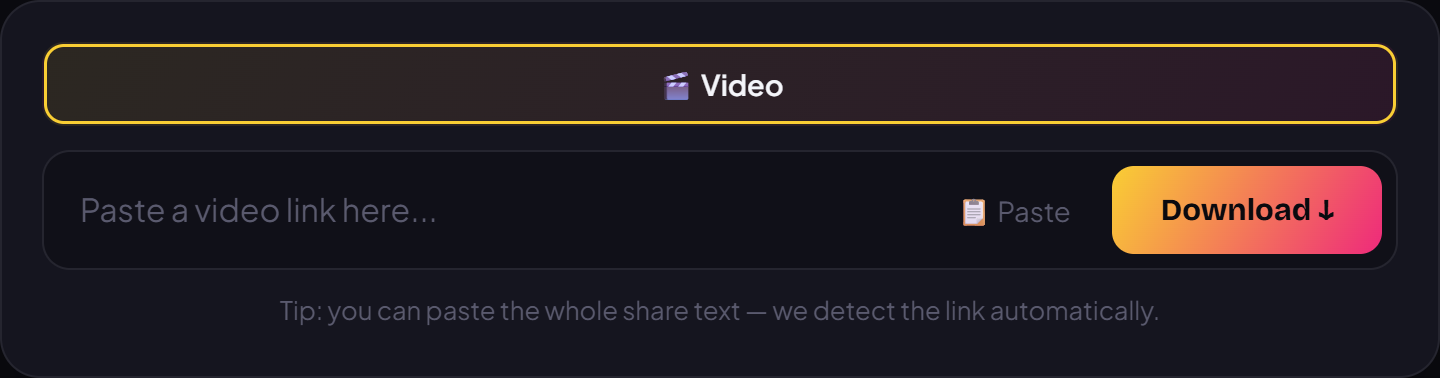
- Open any browser (Safari, Chrome, Edge...) and go to vidbake.com/instagram.
- Tap and hold the input box and choose Paste; on a computer, press Ctrl+V. The Reel link appears in the box.
- Press Download. VidBake recognizes it as an Instagram Reel and fetches the original file straight from Instagram's servers — no logo, no username stamped on it, at the highest available quality.
- Pick the quality you want (prefer HD or Full HD when available) and save it to your device. To grab another Reel, just repeat: copy a new link, paste it, and press Download.
Tips and device notes
Where the file lands differs a little by device. On iPhone and iPad, the video usually goes to the Files app under Downloads, or you can save it straight to Photos. On Android, it lands in your Download folder and appears in your Gallery within seconds. On PC and Mac, it saves to your default Downloads folder like any other file. The steps are identical everywhere because everything runs right in the browser, with no separate software to install.
VidBake does more than Reels. For multi-image posts, it can download the full set of original photos. The same tool also downloads TikTok, Douyin, and Facebook videos — all from the same paste-the-link step. And if you want to trim, add text, or drop in music after downloading, there's VidBake Studio, a free video editor for Windows.
Common problems and how to fix them
- Pasted a link but nothing loads: check that you copied the whole link. Copy it again with Share › Copy link inside the app rather than typing it by hand.
- The Reel is from a private account: VidBake can only download videos from public accounts. Content from private accounts needs your viewing permission, so a public link won't work.
- The download isn't as sharp as expected: quality depends on the original the creator uploaded. If they posted a lower-quality version, that's the ceiling — VidBake always grabs the highest version available.
- On iPhone, Safari asks to allow the download: tap Allow; the video then sits in the Files app under Downloads, and you can move it to Photos from there.
- No Paste option on your phone: press and hold inside the input box to bring up Paste, or double-tap the field.
Frequently asked questions
Is downloading Reels with VidBake free? Yes — completely free, with no limit on how many you save.
Do I need to log in or install an app? Neither. Everything runs in the browser; all you need is the Reel's public link.
Is this safe for my Instagram account? Yes. Because you never enter your username or password anywhere, your account is never touched. VidBake also doesn't store your video or track you — your data is deleted right after the download.
Will the video have a logo or the poster's name on it? No. VidBake takes the original file from the source, so the video is clean, with no watermark and no username.