How to use VidBake Studio to edit and export video
VidBake Studio is a free video editor for Windows with a lightweight, CapCut-style layout — no account to create and no constant internet connection required. If you just grabbed a clip with VidBake and want to trim the dead air, join a few takes, add captions or drop in music before you repost, Studio handles all of it right on your PC. Best of all, the exported video comes out clean — no logo, no watermark — and it costs nothing. This guide walks you from opening Studio for the first time to exporting a finished file.
What is VidBake Studio and what can it do?
Studio is a complete video builder, not just a basic trimmer. You get a real-time preview so you see changes instantly, a timeline for arranging and cutting your clips, and full tools for text, captions and music. Everything works through intuitive drag-and-drop, so first-timers can get a result on day one.
In practice, Studio lets you cut out unwanted parts and stitch clips into one seamless video; add titles and captions; insert background music; batch-render several videos at once; and export an HD MP4 with no logo at all. Because it runs directly on your machine, nothing is uploaded anywhere — your footage stays on your PC.
Before you start
Studio runs on Windows 10 and 11. Download the installer, open it and follow the prompts — no account needed. If the footage you want to edit is a clip from TikTok, Douyin, Instagram or Facebook, download the original watermark-free file with VidBake first, save it to your PC, then bring it into Studio. That way your final export stays logo-free from start to finish.
Editing a video step by step
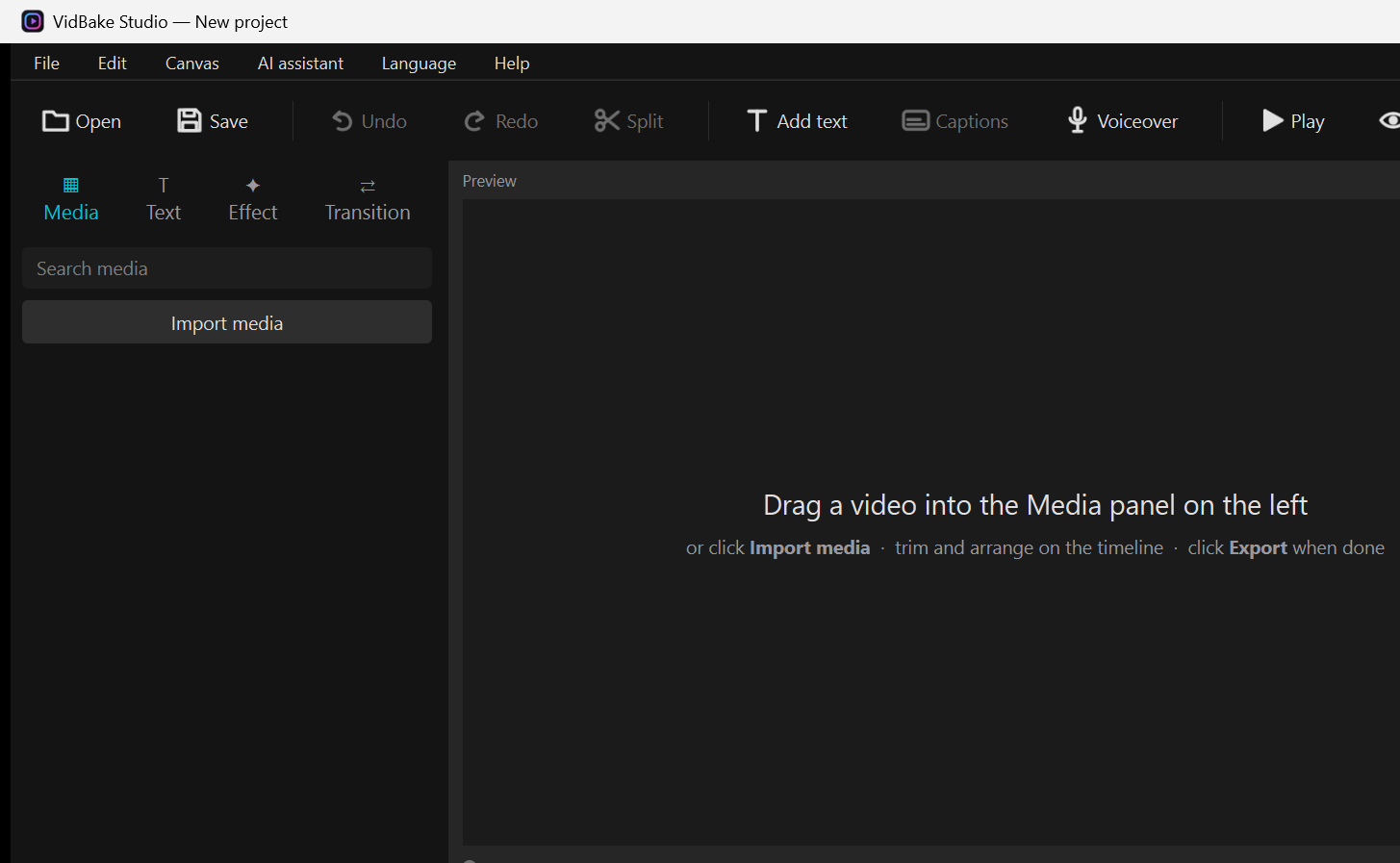
- Open VidBake Studio and start a new project. The layout has four familiar areas: the toolbar across the top, the Media panel on the left, the Preview in the center, and the timeline running along the bottom.
- Import your footage. In the left column, click Import media and pick a file, or drag a video straight from a folder into the Media panel. You can bring in several clips, images and audio files at once.
- Drop clips onto the timeline. Drag a video from Media down to the timeline. The order of clips on the timeline is the order they play in your video, so rearrange them by dragging until it reads right.
- Trim the parts you don't want. Move the playhead to the cut point, click Split to divide the clip in two, select the piece you don't need and delete it. Repeat until only your keepers remain.
- Add text and captions. Click Add text on the toolbar, type your words, set the font, size and color, then drag the text where you want it in the Preview. Drag the ends of the text block on the timeline to control how long it stays on screen.
- Add background music. Insert a music track from the Media panel onto the timeline, then adjust its volume so it sits nicely under the original audio.
- Preview, then export. Click Play to watch the whole thing. When you're happy, go to File › Export, pick a resolution (1080p for sharp quality), and let Studio render an MP4 to your computer — watermark-free and ready to post anywhere.
Tips for a cleaner, smoother video
- Save your project often as you work, especially on longer videos, so a sudden shutdown doesn't cost you your progress.
- Name and organize your clips in the Media panel before dragging them down — the more clips a video has, the more this habit saves you from chaos.
- Keep text and captions large enough, with a color that contrasts the background, so viewers on phones can read them easily.
- Export at 1080p (Full HD) for most social posts — that is also the highest resolution Studio supports.
- Play back the music before exporting to be sure the levels are balanced and the background track isn't burying the original audio.
Common problems and how to fix them
Export is slow or stuttering? Rendering a long video with lots of effects always takes time and resources. Close other heavy apps you have open, and if you only need a rough preview, export at a lower resolution to speed things up.
A file won't drag into Media? Check its format. If an unusual clip won't load, convert it to MP4 and import it again.
Text or a clip vanished from the Preview? Usually the block sits outside the playhead's position on the timeline, or another layer is covering it. Check its position and the layer order on the timeline.
Deleted something by accident? Press Ctrl+Z to undo right away. If you already closed the project, reopen it and redo that part — Studio keeps your project on your PC, so the original imported files aren't lost.
Frequently asked questions
Is VidBake Studio free? Yes, completely free with no login. Exported videos carry no watermark or logo.
Which system does it run on? Studio is for Windows 10 and 11. There's no phone version yet; if you only need to download a video without editing, use the VidBake site right in your phone's browser.
Is it heavy on my PC? Studio is optimized to stay lightweight; for everyday trimming and text, a regular computer runs it smoothly. A low-spec machine will only feel slower when exporting long videos.
Do I need internet to use it? Editing and trimming happen on your machine, so they don't depend on a connection. You only need the internet to download the software or to grab source videos with VidBake.